Showing posts with label Laptop. Show all posts

Friday, June 9, 2017

India Ranks 89 in Average Internet Connection Speed

According to the latest Akami State of The Internet Report, India ranks 89 globally in average connection speed. The report observes that the average connection speed in India is around 6.5 Mbps. This makes India 14th of the 15 countries surveyed in the Asia Pacific region. It is worth noting that Asia Pacific region contains the global leader South Korea.
In terms of peak speed, India is in 15th position in Asia Pacific region and  the global rank is an abysmal 97. Despite the high penetration of 4G networks like Jio and Airtel and higher smartphone adaptation, the country remains far behind both globally and in the neighborhood in terms of connectivity speed.

Further on the distribution of broadband speeds, 42% of Indians have 4 Mbps lines, 19% have 10 Mbps lines and only 10% have 15 Mbps lines. On an interesting side note, USA ranks 28th in terms of Wireless Connectivity speeds!

Monday, November 17, 2014

Online Offers or Outright Scams?

Recently I bought some instant pasta and got some gift coupons with it. It said that there is 500/- off on purchases above 1200/- in a popular online store. As my running shoes were wearing off, I thought I can use it to buy a pair of shoes. I checked the price of some shoe models and compared it with another online store's prices. There was almost 600 to 700/- difference. So, they just give 500/- off while pricing things 600/- more. Is this an offer?
Again, one day everyone around me at office were panicking. They said that some online shops are giving unbelievable discounts. But again, when checked against some other online stores, people realized that it is just a publicity stunt and the so called offer prices are higher than other sites.

Some other companies give you "free" talktime offers with purchase of things like noodles and dishwash bars. But that requires you to "register" yourself with some sites. This is the catch. They get your email id, mobile number etc. And as usual we never read the "terms and conditions" but just click "I Agree". So this information can be misused. I am not saying that all such offers are threat to your privacy but you can not trust all such offers. Nothing in the world comes for free from "businesses". They themselves say that they are not charities!

So am I against all online purchases? Definitely not! I myself purchase lot of things online. But what I am saying is, clever marketing gimmicks and enticing offers should not mislead us to waste our money on something that is not worth. Now let me list out how these online stores are serving us better as well as how they are spoiling us!

The Good Side:

1. They don't need to rent a large showroom, air-condition it, pay hefty electricity and water bills and employ staffs. All they need is a website and a warehouse. That's why they can offer cheaper prices.

2. They offer more choices. For example, they provide option to buy phones and laptops of brands that are seldom available in conventional market.

3. They allow you to shop at your convenience. More payment choices and offers.

4. There are some tax differences between states. As these products are shipped from various locations across India, you can get a cheaper deal in that way too!

The Bad Side:

1. Things like shoes, dress etc can have mismatch against your expectations.

2. Purchasing lesser known brands may look like steal deals. But in some cases, there can be poor after sales service that will make you regret the purchase!

3. Delay in shipments are possible. Also some damaged products may need lengthy follow-ups to get rectified or refunded. Some times that even won't happen.

4. Unlike in case of conventional shopping which happens once in a while, people can constantly waste their time by looking in to online stores. Some tempting offers and targeted ads create an unwanted urges to spend on things that people seldom need.

So, to summarize, online stores are inevitable effect of the IT revolution. There is no point in protesting against it. Resistance is futile! These stores provide us more options and choices. But be careful! Don't purchase anything in a hurry. Compare price in other online stores and conventional shops. (Recently I bought a helmet of same brand/model/size for a much lesser price than in any online store from a conventional shop!) Before buying anything ask yourself if you really need it and will use it for sure and it is worth the money you are going to spend on it. Once again! Beware of online offers. Be extra cautious before buying anything (not only online but also in normal shops).

Friday, October 24, 2014

Ubuntu 14.10 – Steps to Upgrade

As discussed earlier in a previous blog post, Ubuntu 14.10 is out! Finally the wait is over. Before you are going to upgrade your OS, keep in mind that 14.10 is a regular release and 14.04 is a Long Term Support release (meaning you will get security/critical updates for 5 years). So if you want the LTS to stay, don't bother updating your PC/laptop until 16.04, the next LTS version, which will be release around April, 2016. With that said, for those who always want the stability of Debian with cutting edge packages, can proceed with upgrading their OS.

Steps to Upgrade:

First update your machine. Open terminal, type the following command

sudo apt-get update
This laptop was bit outdated!
Type in the password. After completion, run

sudo apt-get upgrade
Depending upon the number of packages you have and the interval of update it can take few minutes to update your OS to latest available packages.

After this, go to “Software & Updates” click on the “Updates” tab and check the “Notify me of a new Ubuntu version:” option at the bottom. It should be set to “For any new version”.
Search for "update"
Check the last option in the "update" tab
Now go to “Software Updater” and it will notify you that a newer version of Ubuntu is available.
Search for "updater"
Wow! The wait is over!
 Click “Upgrade” and you will be presented with the release notes. Click “Upgrade” here too!
It will download the “release upgrade tool” which will take care of the remaining upgrade process.
The upgrade tool will do preliminary preparations for the upgrade and calculates the packages to update as well as size of download and approximate time to download. Ensure that you have enough time and stable Internet connection. If yours is a laptop, then don't forget to connect the charger! (But sadly, there was a power cut during my upgrade process and my modem went off. But thankfully the download started from where it was left in between!)

Click “Start Upgrade” and the packages will be downloaded. After that the required packages will be installed/upgraded and obsolete packages will be removed.

After everything is over, the upgrade tool will prompt you to restart your machine.
And after that!!!
The wallpaper looks awesome!

Tuesday, October 21, 2014

Ubuntu 14.10 Utopic Unicorn

Only two days to go, Ubuntu 14.10 Utopic Unicorn is planned to be released on 23rd October 2014. If you expect either Utopia or a Unicorn, you will be disappointed for sure. But if you expect a stable and user-friendly operating system, you will never get disappointed with Ubuntu.

Ubuntu 14.10 is a normal release (supported for 9 months), unlike 14.04, which is an LTS (Long Term Support, supported for 5 years). So, if you are running Ubuntu 14.04 and not interested in upgrading your OS for next one and half years, without losing security updates, they you should ignore these versions till Ubuntu 16.04 comes to your rescue!
A laptop running Ubuntu

Ubuntu 14.10 will pack Linux Kernel 3.16 (I am already running 3.17 through openSuse Tumbleweed!) which is well tested up to Debian standards. So you get a latest kernel without compromising stability. Linux 3.16 packs better support for Btrfs filesystem, improved performance in ARM platforms (mainly for smartphones and tablets). This will aid Ubuntu to get a better ground in mobile arena.

Sadly on UI front, neither Unity 8 nor GNOME 3.14 is coming with this version. Also the uncertainty surrounding the new Mir display server also prevails. So, if you are looking for anything new in UI/graphic area, then you have to wait a bit (or even much more) longer.

But against all odds, Ubuntu is a trusted name among PC and laptop users. Its user friendly nature and bundled software make it default choice of people who want an OS that just works! This "just works!" mantra is what Apple uses to sell their products for sky rocketing prices. But Ubuntu gives you everything for free.

Saturday, April 26, 2014

My Experience with Ubuntu 14.04 LTS

I installed Ubuntu 12.04 LTS in my new laptop due to laziness. (Yes, that was to top most reason as I was not in a mood to download a new distro. My USB drive had Ubuntu 12.04 as I used it lastly to install the same in my friend's laptop.) The laptop originally came with Windows 8. But I am happy only after wiping all the traces (installation, hidden rescue partition, drivers partition and even the Windows sticker) of it from my laptop. Now let me share my experience in upgrading and using 14.04 LTS.

First I did a normal update and made sure that all things are up to date. Then I opened update-manager through terminal and it showed that 14.04 is available. I chose to upgrade. It downloaded some 2300+ packages (around 1 GB) and took nearly 2 hours to get completed. Occasionally it asked few things like which display manager to use (as I have installed 4 desktop environments) and there was a change in only one conf file. So everything went fine.


After the reboot, I was taken aback by the speed. But on the other hand, the brightness control stopped to work. All other hardware drivers like bluetooth, Wi-Fi, touchscreen, volume keys, suspend/resume were working fine. So I did these simple changes to get things working! Overall the UI and the system are optimized and they run faster than earlier version. Also the UI is polished to work well with touch devices. So it is a great deal for people having touch laptops.

It packs lot of goodies and everything you need from media player to office applications are readily available. With Ubuntu LTS, you also get enterprise quality, robust and secure OS, which will be supported for another 5 years. Hope my laptop will live longer than that!

Boot speed has greatly improved.I logged in to the default Unity interface for the first time. I was greeted with a screen detailing how to use Unity. Fine. The UI is smooth and as a Gnome user, I like Unity too. Only thing is that, whatever you search in Unity will be sent to internet for searching other service providers, especially Amazon. You can easily disable it though! Just type privacy in the search box and turn off Internet search. You can also remove Amazon extension from software center or through command line.


Now my favorite, Gnome 3! It too was awesome. Clean and responsive. But due to my low end processor and lesser RAM, there were some occasional lags. But still it is usable.
 
Gnome Classic modes are also available in the login screen itself. Both Metacity and Compiz options to play with! It too is polished and less resource savy. I usually choose this session, if I am going to kill time with games and media.


LXDE desktop offers a old style but lightning fast experience. The LXDE needs some touch-ups to make things like screenshots and brightness control to work. But thankfully, they are all easily configurable!


XFCE experience is also smooth. I prefer this for most of the times as it is bit heavier than LXDE but lot lighter than Gnome or Unity, perfect for my laptop configuration!

Tuesday, April 22, 2014

Lenovo S210T - Brightness Control Keys Under Ubuntu 14.04 LTS

With the default Ubuntu 14.04 installation brightness control keys won't work. To fix this follow the steps below:

1. Open terminal (press Win key and type "terminal" and choose terminal)

2. Type the below code (you may be prompted to enter password)

gksudo gedit /etc/default/grub

3. In the grub file, edit the following line

GRUB_CMDLINE_LINUX_DEFAULT="quiet splash"

to

GRUB_CMDLINE_LINUX_DEFAULT="quiet splash acpi_backlight=vendor"

4. Make sure you have not done any other change by mistake as it will mess up your booting. Save and close the file.

5. Then execute below command

sudo update-grub

6. Edit blacklist configuration file for modprobe

gksudo gedit /etc/modprobe.d/blacklist.conf

7. Add the following lines to it

# Added to make brightness control work
blacklist ideapad_laptop

8. Restart your PC
Brightness control working in Gnome session

For LXDE and XFCE, the keyboard keys won't work. But alternatively you can use the xbacklight command. Follow the below steps after doing above changes.

1. To install xbacklight

sudo apt-get install xbacklight

2. To decrease brightness

xbacklight -dec 5

3. and to increase brightness

xbacklight -inc 7

The numbers can be anything But be extra careful as it may fully reduce brightness if you give large numbers.

Any other comments/feedbacks/improvements are welcome! Thanks for reading.

Tuesday, March 18, 2014

Tamil Nadu Government Offices to Ditch XP for BOSS

I have already written in this blog about ending XP support and Free Operating Systems as a possible alternate. I have also written why to use a Free OS instead of proprietary OS like Windows 7/8 or OSX. Now, I am so happy to know that TN government is taking this initiative. This is a step in right direction to liberate our computers from corporate monopolies and those viruses/malwares/back-doors.
Image courtesy: http://distrowatch.com/

Though, the Government's order is a good one, it still has some gray areas. It didn't enforce the use of BOSS (Bharat Operating System Solution, a GNU/Linux distribution developed by Centre for Development of Advanced Computing). But it is given as a suggestion. The Government offices are asked to "consider" installing BOSS than purchasing proprietary operating systems.

BOSS is the operating system bundled with free laptops given by Tamil Nadu government. Earlier it was planned to ship only with BOSS, but later Windows 7 was given a place. Due to this, many students simple ignore BOSS. Here I place my request to ship free laptops with any free operating system ONLY. Now let us see the pros and cons of the BOSS

Pros:

1. BOSS has excellent Indic fonts support. So our people can use the computers in their own language.
2. BOSS is relatively robust, almost virus-free, free of cost, requires no hardware upgrade and easy to use.
3. As a free software, our Government data will not be under immediate threat of NSA(or NSA like) sponsored corporate back-doors.

Cons:

1. Its repositories are relatively old. So latest and wide varieties of software are not available easily.
2. It is bundled with proprietary codecs and freewares like Adobe flash, mp3 etc, which are not needed in context of Government offices.

My Two Cents:

The battle has just begun. But we need to do lot of things.

* Indian government can spend a little more and build a better OS suitable for Government office needs.

* If community supported distros can give latest and greatest software with rock solid stability, why can't one of the fastest developing nation develop and support one?

* Government should mandate that all PC/laptops sold in India must have a OS-less version available.

* All proprietary software should be kicked out from curriculum.

* Government should encourage/mandate universities to contribute to Free Software projects and also give generous donations to Free Software projects. They should not (ab)use free software as they are available for free of cost.

* Dangers of using proprietary software should be advertised as in the case of unprotected sex.

References:

1. http://www.thehindu.com/todays-paper/tp-national/tp-tamilnadu/state-departments-asked-to-switch-over-to-free-open-source-software/article5798429.ece
2. http://bosslinux.in/
3. http://cdac.in/
4. http://archive.tehelka.com/story_main50.asp?filename=Ws101011MICROSOFT.asp

Monday, March 10, 2014

Software Suggestions: 5 GNU/Linux Packages

1. SMPlayer

Want a clean, simple yet powerful media player? Tired of VLC? Don't want to use those trial/crippled sharewares? Then you should give SMPlayer a try. An awesome media player with support for lot of codecs.

Name: SMPlayer
License: GPL
Website: http://smplayer.sourceforge.net/

2. Stellarium

Are you a person who likes to stare at the night sky but couldn't due to various reasons? Then here is a software that can bring the space experience to your PC. Stellarium has lot of features that make things even more interesting. You can zoom in to objects, you can see the moons of Jupiter going around it! You can fast-forward the movements of heavenly bodies. You can get real-time position, scientific names etc for almost 210 million stars (you have to install those extra catalogs).

Name: Stellarium
License: GPL
Website: http://www.stellarium.org/

3. Freeciv

Do you think you can change the world? Give it a try with Freeciv. You begin to rule a small band of settlers, workers and an explorer. You have to research each and everything like pottery, iron working, gun powder and you can go till nuclear weapons, super conductor and spacecrafts. Also you can progress in to a republic or democracy. You can build wonders, city improvements etc. You have to keep and eye on each city so that people are content and the city is not slipping in to famine etc. If you start this game, surely it will take hours to finish :)

Name: Freeciv
License: GPL
Website: http://freeciv.wikia.com/wiki/Main_Page

4. Audacity

Edit your audios like a pro. You can filter noise, merge stereo to mono, invert stereo tracks to cancel out voice, alter pitch and lot more. It comes handy to edit audios for stage shows. It has ability to convert audio cassettes in to digital music with surprising results. If you love music and have lot of cassettes, you must try this out!

Name: Audacity
License: GPL
Website: http://audacity.sourceforge.net/

5. GIMP

Tired of using pirated versions of Photoshop? Is that serial-key generator for Photoshop contain virus? Don't have enough money to buy a license? Forget about that! Here is GIMP! GNU Image Manipulation Program (GIMP) can be used to create high quality images, icons, gif animations, wallpapers or just casual photo editing. Cartoon effect, pencil sketch effect, photo frame effect are readily available. In experienced hands, GIMP can work miracles.

Name: GIMP
License: LGPL/GPL
Website: http://www.gimp.org/

Thursday, February 27, 2014

Time to Change

Windows XP's support is going to end this April. So if you are running Windows XP, it is time to go free. Free as in freedom. Here is a list of OS you can choose to get rid of the buggy, insecure XP platform.

1. aLinux


You won't feel that you have changed your OS apart from performance improvemnts, being virus free and less buggy. aLinux comes with KDE 3.5, Koffice(MS office replacement), GIMP(like Photoshop), mp3/divx/flash support, Clam-AV antivirus etc.

Get yours at http://alinux.tv

2. Lubuntu

So, this distro's look and feel is much like XP. It consumes less resources and feels great on old hardware. It comes with Abi Word, MTPaint, Xfburn (cd/dvd burning), Sylpheed (like Outlook). With 256 MB RAM, you get a perfectly working system.

More info: http://lubuntu.net

3. PC-BSD with Xfce

Ok, it may be boaring with too much Linux. Say hi to BSD with PC-BSD. Xfce gives you a classic XP like interface. AppCafe gives easy access for all packages you need and you will love its clean UI.

Check this out: http://www.pcbsd.org

4. Manjaro

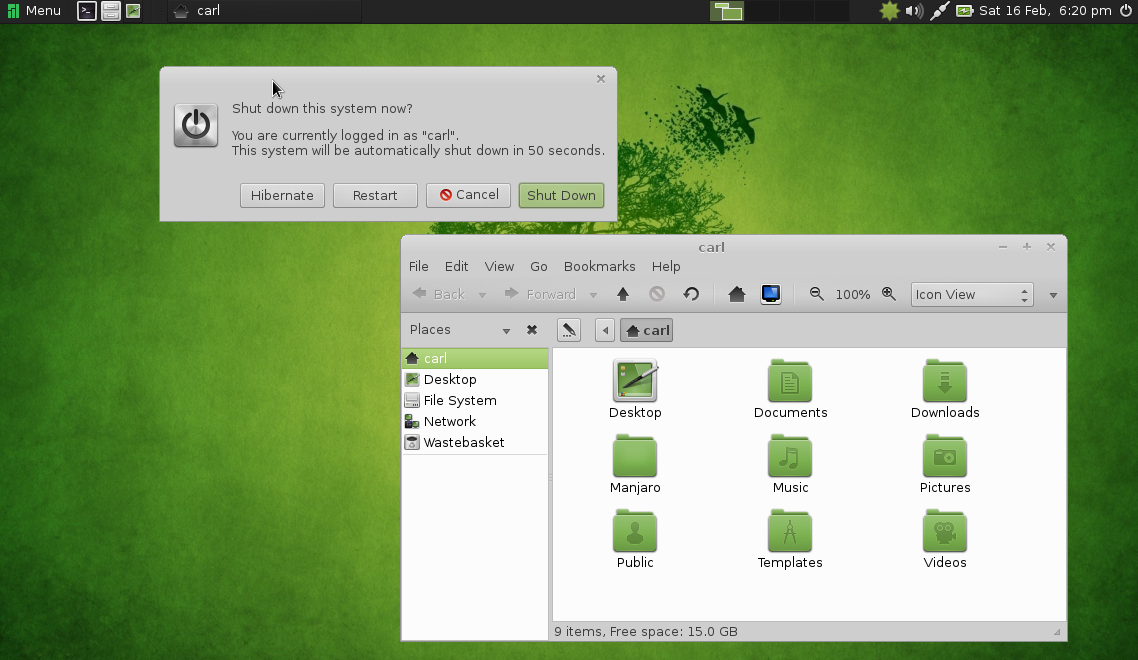
Still in beta, from the house of Arch, Manjaro ives you rolling release with a wide choices of desktop environments. I suggest MATE desktop, which is both modern and traditional simultaneously. Manjaro comes with out of the box multimedia support and good hardware driver support. Only downside is, it needs bit powerful hardware.

Get your copy at: http://manjaro.org

5. Bodhi

”Enlightenment” comes here. You need 128MB RAM to run this distro. I won't say it has all tools you need, but it will meet your expectation. The lightweight UI looks so polished and you can fool your friends that yours is a latest PC with a latest OS ;-)

You can negate your bad karma here: http://www.bodhilinux.com/

Wednesday, February 26, 2014

Top 10 Distros

Well, I have been using Free Software based distributions from 2004 (that was when I got my first own PC). I have come across many distributions. Now, I will share 10 of the best distributions I recommend people and their target audience. The list is sort of a count-down. So let us start with 10.

10. PC-BSD

BSD is not Linux. It is a UNIX clone too. Its file system, partition management, working differs greatly from Linux based distros. But this is a very solid platform and provides a secure and robust system suitable for servers and research and development labs. If you are freaky enough, you can try to install it as a dual booting system along with a GNU/Linux system.

9. Puppy Linux

Do you have a very old PC? Or have you managed to assemble a PC from junkyard? Here is a distro that can fire it up to life. Puppy Linux requires very less memory and other requirements. Of course it lacks fancy GUI and powerful tools like office applications. But it works like charm in very old hardware. Puppy is derived from Ubuntu.

8. Lubuntu

This LXDE flavor of Ubuntu is Puppy Linux for bit newer hardware. Also this packs good driver support and adds option to install latest and greatest packages. So if you have a 10 years old PC and want it to perform fast like a new one, Lubuntu is for you.

7. Gentoo

For those who doubt pre-compiled binaries in repositories, Gentoo is the answer. If you have enough time and powerful hardware, you can do the entire compilation of your GNU/Linux system right on your machine. You may find the installation bit tough. But it is rewarding. You never need to upgrade the system. You only need to update it. This is called rolling release. Compared to Fedora in which you need to upgrade frequently, this is relatively simple. Suitable for BASHers. So install once and forget how to install. You can still complain that the stage-3 tarballs are tainted by NSA ;-)

6. Arch Linux

This is the one for those who are not afraid of command line interface. You have to set up this distro by executing commands. No GUI based installation.This is much like Gentoo minus compilation. Arch is awesome and has a very good community to support. If you search for generic Linux issues, Arch wiki is where you land.

5. Ubuntu/Linux Mint

These are derivatives of Debian. Mint comes with Mate desktop environment for those who hate GNOME 3 and Ubuntu comes with Unity interface. These distros ship with lot of proprietary drivers. The reason I recommend them is because they are suitable for lazy people who just want everything working out of the box. Especially if you have laptops with locked hardware, this will work out in most cases. But the better suggestion is to choose a more open hardware and go for a better distribution.

4. CentOS

CentOS is community supported clone of RedHat Linux. This is one of the most stable and well tested distro. But it lags a lot in terms of package versions. For example, current version of CentOS (as of 26th Feb, 2014) ships with 2.6.x kernel, while a uname -r in my machine spat out 3.13.3. But this has its own plus. All packages are well tested. Almost all bugs fixed and most drivers for bit older hardware are readily available. This makes it suitable for servers and workstations. Also this distro as of now lacks fancy desktop environments. So it uses less resources and perform well.

3. OpenSUSE

OpenSUSE is community edition of SUSE from Novell. Made in Germany. IT has good driver support and an active community to help you out. If you can switch to Tumbleweed channel, you can get a taste of rolling release like that of Arch. Yast makes the system management easy. So this is the distro suitable for home PCs with good hardware configurations. It ships with awesome desktop environments like KDE 4 and GNOME 3. Everything you need in one place!

2. Fedora

This the future version of Red Hat. What is today Fedora will become Red Hat one day. It is one of the most bleeding edge distro. This makes it a bit hard to use for people with proprietary hardware. As the kernel and other stuffs are constantly updated, it may impact the system sometimes. Mostly the stable releases won't have any problem. But don't ask me about why x or y is not working after an update. This is suitable for power users with good open hardware (without proprietary graphic cards, wi-fi chips, web cams etc).

1. BLAG/Dragora/Dynebolic/gNewSense/Musix/Parabola/Trisquel

These are all Free Software Foundation (FSF)  approved distros. They may lack some drivers, no flash,  they can't play mp3s. These are not so fancy and these are not meant for kids playing flash games or adults watching porn. But if you care about freedom, these are the distributions you should run. Especially gNewSense is the distribution that Dr. Richard Stallman himself runs. You can find more information about these distributions at http://www.gnu.org/distros/free-distros.html

Tuesday, January 21, 2014

Lenovo S210T - Brightness Control Keys Under Ubuntu 12.04 LTS

!!!Update!!! Upgrading to 14.04 LTS needs a small change to make the brightness control work perfectly. Read the update section below.

With the default Ubuntu 12.04 installation brightness control keys won't work. To fix this follow the steps below:

1. Open terminal (press Win key and type "terminal" and choose terminal)

2. Type the below code (you may be prompted to enter password)

gksudo gedit /etc/default/grub

3. In the grub file, edit the following line

GRUB_CMDLINE_LINUX_DEFAULT="quiet splash"

to

GRUB_CMDLINE_LINUX_DEFAULT="quiet splash acpi_backlight=vendor"

4. Make sure you have not done any other change by mistake as it will mess up your booting. Save and close the file.

5. Then execute below command

sudo update-grub

6. Restart your PC

Brightness Control working after ACPI change in GRUB command line

For me this fix works well. My model is the one with CDC processor, 2GB RAM,  500GB HDD. The brightness keys work most of the times, but in some sporadic cases, it won't. It happens very rarely (may be once in 20 boots). There may be some problem with drivers or something. I will update if I find out why.(see update) For Unity 3D/Unity 2D, the keyboard brightness control works flawlessly. For LXDE, the keys won't work. But alternatively you can use the xbacklight command. Follow the below steps after doing above changes.

1. To install xbacklight

sudo apt-get install xbacklight

2. To decrease brightness

xbacklight -dec 5

3. and to increase brightness

xbacklight -inc 7

The numbers can be anything But be extra careful as it may fully reduce brightness if you give large numbers.

Update: Ubuntu 14.04 LTS (April 26th 2014)

I recently updated my laptop with Ubuntu 14.04 LTS, after which the brightness control stopped working permanently. But it just needed a small change to work. Here it is.

1. Edit black list file for modprobe

gksudo gedit /etc/modprobe.d/blacklist.conf

2. Add the following lines to it

# Added to make brightness control work
blacklist ideapad_laptop

3. Reboot

That's it! Now brightness control works perfectly every times :)


Any other comments/feedbacks/improvements are welcome! Thanks for reading.